

Does Walgreens Take Apple Pay? Plus a Tip To Earn 3% Cashback
I was surprised to learn that Walgreens is the 2nd largest pharmacy in the United States. With the large assortment of items you can purchase at Walgreens, I was curious if it was just as convenient when it comes to payment methods, specifically, does Walgreen take Apple Pay? Apple Pay’s popularity has risen steadily since it was first introduced back in 2014. Today, many (but not all) stores offer Apple Pay as a quick and easy way to pay, so I was interested in learning if Walgreens also provided the payment option to their customers. Here’s everything you need to know and even earn some cash back along the way.
Does Walgreens Accept Apple Pay?
Yes.
Walgreens accepts Apple Pay both online and in-stores.
How Exactly Does It Work?
You can use Apple Pay at Walgreens by following the steps below.
For in-store Walgreens purchases made with Apple Pay:
1. Navigate to your Apple Wallet.
2. Tap Default Card: Select the card you want to pay with (default or pick a different card in your wallet).
3. Double-click the side button on your iPhone to activate Apple Pay.
4. Hold your phone over the contactless reader to complete the payment.
5. You’ll know the purchase has gone through as your device will say “Done” or vibrate.
See Also: Walgreens Return Policy: Make Your Next Return Easy
Can I Use Apple Pay via Walgreens.com?
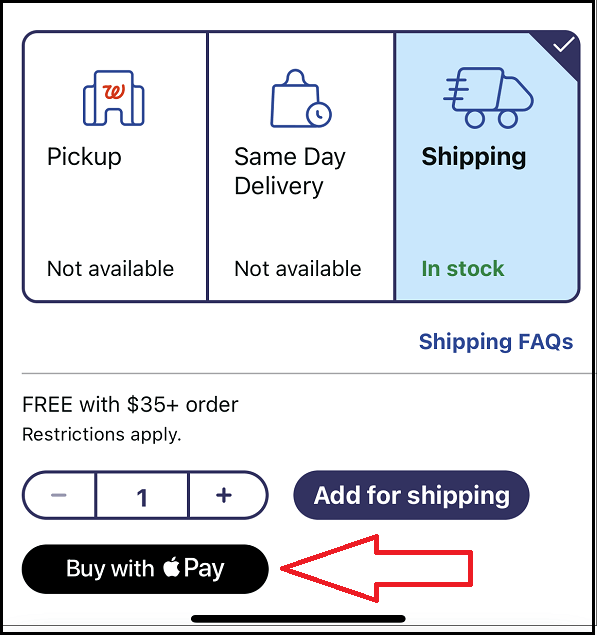
Yes…sort of.
You CAN use Apple Pay on the Walgreens app, but NOT on Walgreens.com.
When you’re shopping via the app, you’ll see the “Buy with Apple Pay” button on the product page of EVERY eligible item.
Just tap that button and follow the on-screen instructions.
Can I Use Apple Pay at the Walgreens Pharmacy?
Yes.
You can use Apple Pay at a Walgreens pharmacy.
You’ll be given the SAME contactless payment reader to complete your purchase.
How About the Pharmacy Drive-Thru?
Yes.
You can also use Apple Pay at the Walgreens pharmacy drive-thru.
See Also: Walmart Doesn’t Take Apple Pay…But Here’s a Clever Workaround
Can I Use It With the “myWalgreens” Rewards Program?
Yes.
You can use Apple Pay with the “myWalgreens” Rewards Program.
To do so, follow these simple steps:
1. Sign up for the MyWalgreens Rewards Program if you aren’t already signed up.
2. In the Walgreens app, sign in to your rewards account.
3. Open up the Walgreens Balance Rewards Card that is on the Walgreens app.
4. Add the card to your Apple Wallet to earn rewards every time you shop at Walgreens.
Can I Use My Apple Watch to Pay?
Yes.
You can use your Apple Watch to pay using Apple Pay at Walgreens.
Follow these instructions to pay with your Apple Watch at Walgreens:
1. Double-click the side button.
2. Your default card will automatically open. If you want to select another card, scroll down.
3. Then, hover your Apple Watch over the contactless reader. You should feel a gentle tap, hear a beep, and see “Done” on your watch display.
See Also: Amazon Pharmacy: 15 Must-Knows to Save Money
Can I Get Cashback When I Use Apple Pay?
Yes.
You can get 3% cash back on all Apple Pay purchases at Walgreens.
Therefore, this is just another incentive to use Apple Pay at Walgreens to essentially earn money back with your purchases.
Of note, Walgreens is the only retail pharmacy that offers 3% cash back when you pay using your Apple Card via Apple Pay.
Most other stores offer about 2% cash back when you pay using Apple Pay.
What Other Forms of Payment Does Walgreens Accept?
Besides Apple Pay, Walgreens accepts various forms of payment options, such as:
- Cash
- Check
- Gift Card
- Debit Card
- Visa
- MasterCard
- Discover Network
- American Express
- CareCredit
You can also pay with PayPal and PayPal Credit when making online Walgreens purchases.
Ask the Reader: Have you ever had trouble using Apple Pay at Walgreens? If so, what went wrong?

By Kyle James
Photo credit to Mike Mozart
Leave a Reply
You must be logged in to post a comment.